DesktopTranslator is a free desktop application that translates text and text files on your own computer. It uses CTranslate2 for fast translation and SentencePiece for subwording, so once you have a model, you do not need an Internet connection. This post shows how to install it, how to use it with different translation models, and how to build your own installer.
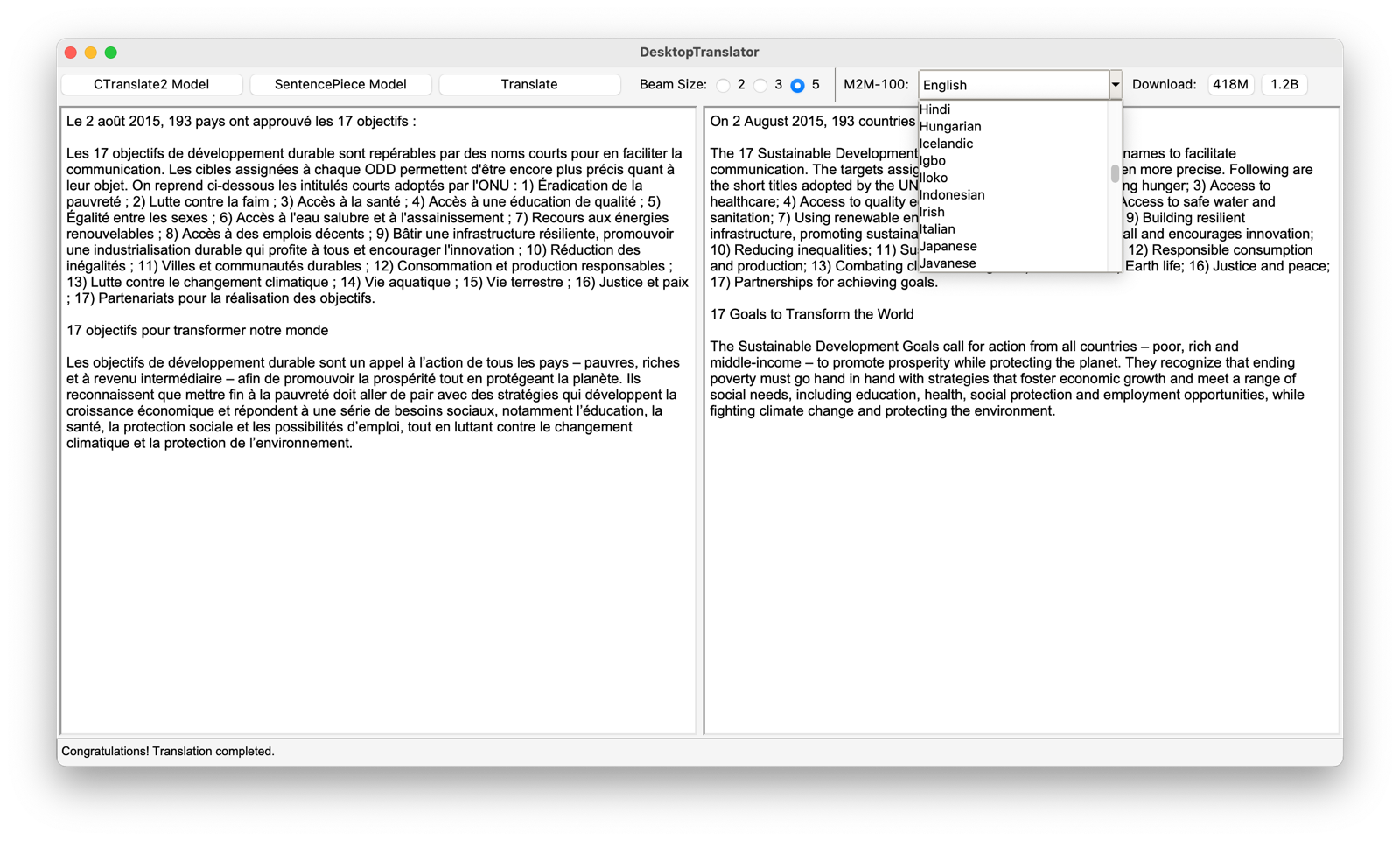
The code is open source under the MIT license.
Download
Translation Models
DesktopTranslator needs two things, a CTranslate2 model and a SentencePiece subwording model. If you have a model for OpenNMT-py, OpenNMT-tf, or FairSeq, you can convert it to the CTranslate2 format.
To translate with a bilingual model, follow these steps.
- In DesktopTranslator, click the CTranslate2 Model button and select the folder of the converted model.
- Click the SentencePiece Model button and select the SentencePiece model of the source language.
- The default Beam Size is 3. You can increase it to 5, which can be slower but sometimes gives better translation quality.
- In the left text area, type some text, or use the File menu and then Open... to open a
.txtfile. - Click the Translate button.
M2M-100 Multilingual Models
DesktopTranslator also supports M2M-100 (Fan et al., 2020), a multilingual model that translates between 100 languages. Select the CTranslate2 model folder and the sentencepiece.model file of the M2M-100 model as above. Then choose the target language from the M2M-100 dropdown list. This step is specific to M2M-100, because it needs a language code prefix. For other models, keep the “None” option.
OPUS Models
Bilingual OPUS models can also be used, and they can be more efficient. Convert the model to the CTranslate2 format first, for example.
ct2-opus-mt-converter --model_dir opus_model_dir --output_dir ct2_model_dir --quantization int8
The source and target SentencePiece models are in the same archive as the downloaded OPUS model.
How It Works
DesktopTranslator is a Python application with a Tkinter interface. CTranslate2 runs the translation, and SentencePiece splits the text into subwords before and after translation.
Build Your Own Installer
If you want to change the code and build an installer yourself, here is how.
Windows
-
Install PyInstaller.
pip3 install pyinstaller -
Run PyInstaller on the main file. The argument
-whides the console window.pyinstaller -y -w "translator.py"If you need to add an extra folder, such as
utils, use this command instead.pyinstaller -y -w --add-data="utils/*;utils/" "translator.py" - Try the
.exefile underdist\translatorto make sure it works. It might complain about the Pmw library. In that case, either remove the Balloon lines from the code, or add this file to the same folder astranslator.pyand run the PyInstaller command again. - Compress the contents of the
distdirectory into a.ziparchive. You can rename thetranslatorfolder first, for example toDesktopTranslator. - Download and install NSIS, launch it, click Installer based on a .ZIP file, and open the archive you just created.
- To install to the “Program Files” folder, enter
$PROGRAMFILESunder Default Folder. - Click Generate. NSIS creates an
.exeinstaller that you can share with other Windows machines, without any extra requirements.
To add a desktop shortcut, or for more NSIS options, see the README on GitHub.
macOS
-
Install
py2app.pip3 install py2app==0.25 - Create a setup.py file in the same directory as the code.
-
Run the following command in the Terminal. You can add the option
-Ato test the app first.python3 setup.py py2app
See Also
- Web Interface for Machine Translation, a browser-based translator built with CTranslate2 and Streamlit
- CTranslate-NMT-Web-Interface, the code for a CTranslate2 web interface
An Earlier Version
An earlier version of this post, written in 2020, described a Windows-only translator built on OpenNMT-py 0.9.1. DesktopTranslator replaces it with a cross-platform app based on CTranslate2.
References
- Efficient and High-Quality Neural Machine Translation with OpenNMT, Klein et al., 2020
- Beyond English-Centric Multilingual Machine Translation, Fan et al., 2020